> For the complete documentation index, see [llms.txt](https://docs.transparentedge.eu/llms.txt). Markdown versions of documentation pages are available by appending `.md` to page URLs; this page is available as [Markdown](https://docs.transparentedge.eu/getting-started/dashboard/auto-provisioning/configuration.md).
# Configuration
Our dashboard provides two configuration methods. The first one, **Easy Setup**, is a simple rule engine that allows you to configure the system without dealing with VCL code. The second option gives you the ability to **write your VCL code**, enabling a more detailed customization of the system’s behavior.
### **Easy Setup**
Our easy setup allows you to perform key actions on your sites in a simple and agile way. It is based on 'if-then' conditional logic. To use it, you need to define a rule with a set of conditions and a specific action for those conditions.
You can find more information about this type of setup [here.](/config/easy-setup.md)
### **Write your VCL code**
Our CDN uses a modified version of the Varnish Configuration Language (VCL), a powerful language that will enable you to customize your site behavior.
A table will be displayed with the history of all configurations.
The current and active configuration is the one marked with a green tick under the "Status" header. You can see when that configuration took effect under "Deployment date".
You can perform the following actions on any of the configurations:
* **`View`** - Opens a read-only view of the configuration, where you can check the code and compare with other configurations.
* **`Duplicate`** - Opens an editor to deploy a new configuration prefilled with the code of this particular configuration.
* **`Back to production`** - A quick way to deploy an older configuration again, it's a "rollback" button.
#### Deploying a new configuration
To deploy a new configuration, click on the "ADD VCL CONFIG" button or, if you want to edit over an older configuration, use the "Duplicate" button instead.
An editor will be displayed where you can edit the VCL code or you can copy it to your favorite editor and paste it later.
**AI Assistant**
Within the **new configuration creation modal**, an **AI assistant** is included that allows you to generate **VCL code** based on a description of the desired behavior.
The assistant translates the request into VCL code, which can then be **copied and pasted into the VCL editor** below, where the user can **validate it, modify it manually if needed, and deploy the configuration**.
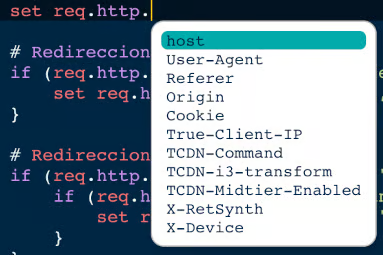
The editor embeds some autocompletion that can be activated using the `CTRL` key.
When you're done editing the configuration, click on "Save". The configuration will be checked for syntax errors and, if any are present, an error will be shown. For example, here we tried to use `req.http` in the `vcl_backend_response` subroutine which only accepts `bereq.http` and `beresp.http`:
Otherwise, if the code is correct. the deployment will be queued and a clock will be displayed in the status of that configuration. Deployments usually take between 2 and 7 minutes to fully propagate.
{% hint style="info" %}
Remember that everything that you can do on our dashboard is available on our [API](https://api.transparentcdn.com/docs).
{% endhint %}
---
# Agent Instructions
This documentation is published with GitBook. GitBook is the documentation platform designed so that both humans and AI agents can read, navigate, and reason over technical content effectively. Learn more at gitbook.com.
## Querying This Documentation
If you need additional information that is not directly available in this page, you can query the documentation by asking a question.
Perform an HTTP GET request on the following URL with the `ask` and `goal` query parameters:
```
GET https://docs.transparentedge.eu/getting-started/dashboard/auto-provisioning/configuration.md?ask=&goal=
```
`ask` is the immediate question: it should be specific, self-contained, and written in natural language.
`goal` is what the user is ultimately trying to achieve, the reason they need the answer. Sharing it helps GitBook give you a better, more relevant answer. A goal is most helpful when it describes the outcome the user wants rather than restating the question. For example, with `ask=how do I create an API token`, a goal like `automate deployments from our CI pipeline` lets GitBook tailor the answer to that use case.
The response will contain a direct answer to the question and relevant excerpts and sources from the documentation.
Use this mechanism when the answer is not explicitly present in the current page, you need clarification or additional context, or you want to retrieve related documentation sections.